
Salesforce is one of the systems Boomi integrations touch most often, whether that is syncing accounts to an ERP, pushing orders across, or reporting on opportunities. Boomi ships a dedicated Salesforce connector, so you rarely need raw API calls.
What you need from Salesforce
- An integration user with API access and only the object permissions the integration needs.
- That user’s password and security token (for username + password login), or
- A connected app (or external client app) for OAuth 2.0.
Tip: Use a dedicated integration user rather than a person’s login. When that person leaves, your integration keeps working, and every change in Salesforce’s history is clearly attributed to the integration.
Step 1: the connection
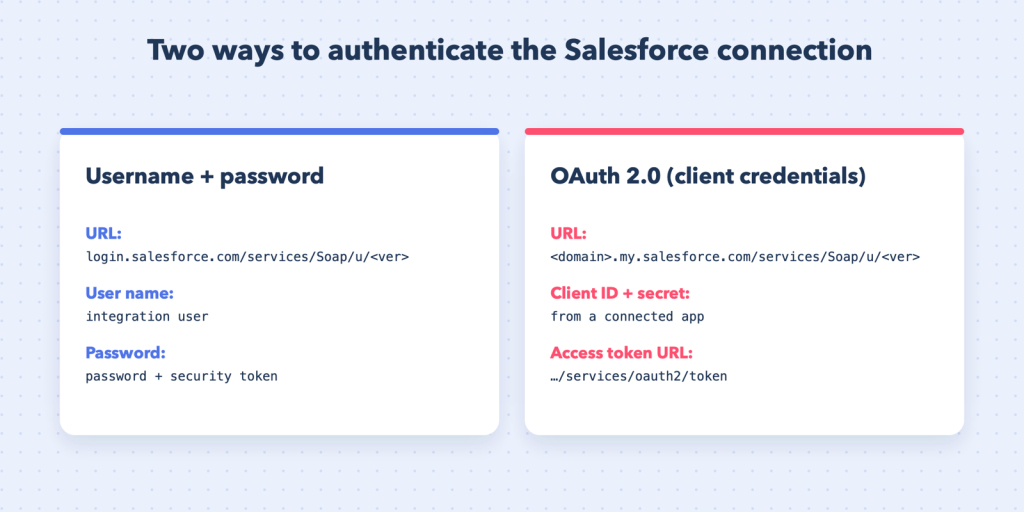
Option A: username + password + security token
| Field | Value |
|---|---|
| URL | https://login.salesforce.com/services/Soap/u/<API version> (production) |
| Sandbox URL | https://test.salesforce.com/services/Soap/u/<API version> |
| User Name | the integration user |
| Password | the password with the security token appended |
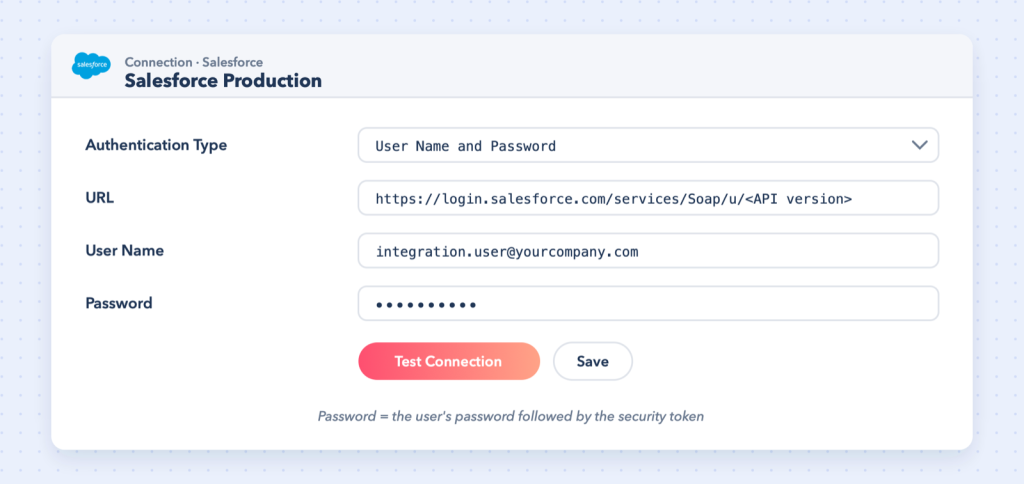
The connector expects the SOAP login URL (the Soap/u path). A REST URL here causes connection failures.
The security token is emailed to the user from Salesforce (Settings → Reset My Security Token). Resetting the token or the password changes what you must enter in Boomi.
Option B: OAuth 2.0 (client credentials)
For OAuth 2.0 the URL is your org’s own My Domain instance URL (for example https://yourcompany.my.salesforce.com/services/Soap/u/<API version>), and you supply the client ID and secret of a connected app along with the access token URL (.../services/oauth2/token).
Note: The Salesforce REST connector is a separate Boomi connector with its own REST-style URL. Do not mix the two configurations.
Use Test Connection before moving on.
Step 2: the operation
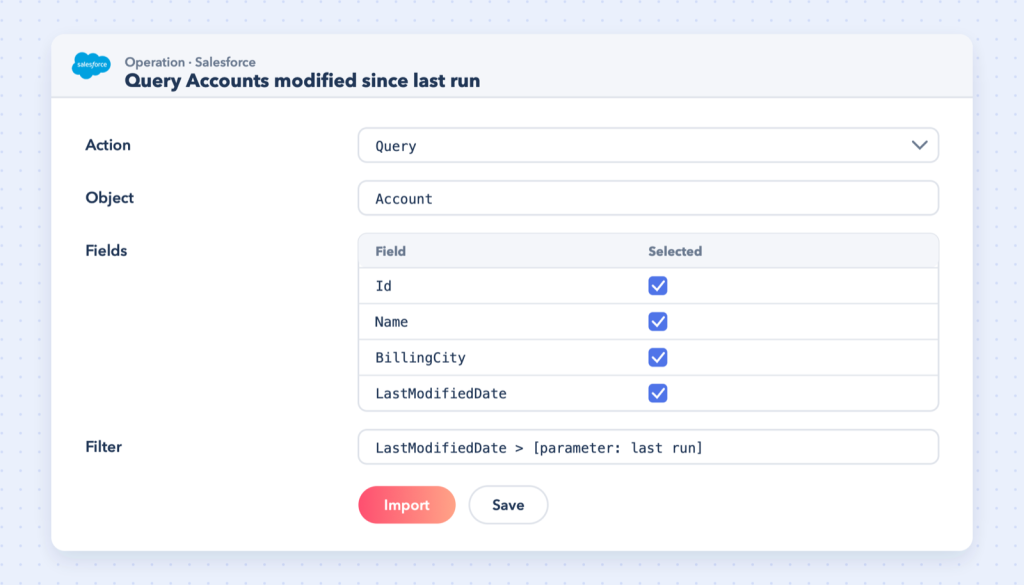
Create an operation and click Import to browse your org’s objects. Pick the object (Account, Contact, Opportunity or a custom __c object), and Boomi builds the request and response profiles.
| Action | Use it to |
|---|---|
| Query | read records with fields and filters (SOQL is built for you) |
| Create | insert new records |
| Update | change records by Salesforce Id |
| Upsert | create or update using an external ID field |
| Delete | remove records |
Tip: Prefer Upsert on an external ID when syncing from another system. Store the other system’s key (for example the NetSuite internal ID) in a Salesforce external-ID field and re-runs never create duplicates.
Example: incremental account sync
A classic pattern is “send accounts changed since the last run”:
- Start shape: Salesforce Query on Account.
- Add a filter on
LastModifiedDategreater than a parameter. - Feed the parameter from a persisted dynamic process property holding the last successful run time.
- Map the accounts to the target system and send them.
- At the end, update the property to the current run’s start time.
This keeps every run small and makes it easy to re-sync by simply moving the date back.
Common errors
- INVALID_LOGIN: wrong password, missing or outdated security token, or the wrong URL (production vs sandbox).
- API not enabled / insufficient access: the user’s profile or permission set lacks API access or object permissions.
- Required field missing on create: check the object’s required fields and validation rules in Salesforce.
Further reading
Next in the series: Connect NetSuite with Boomi (SOAP).