
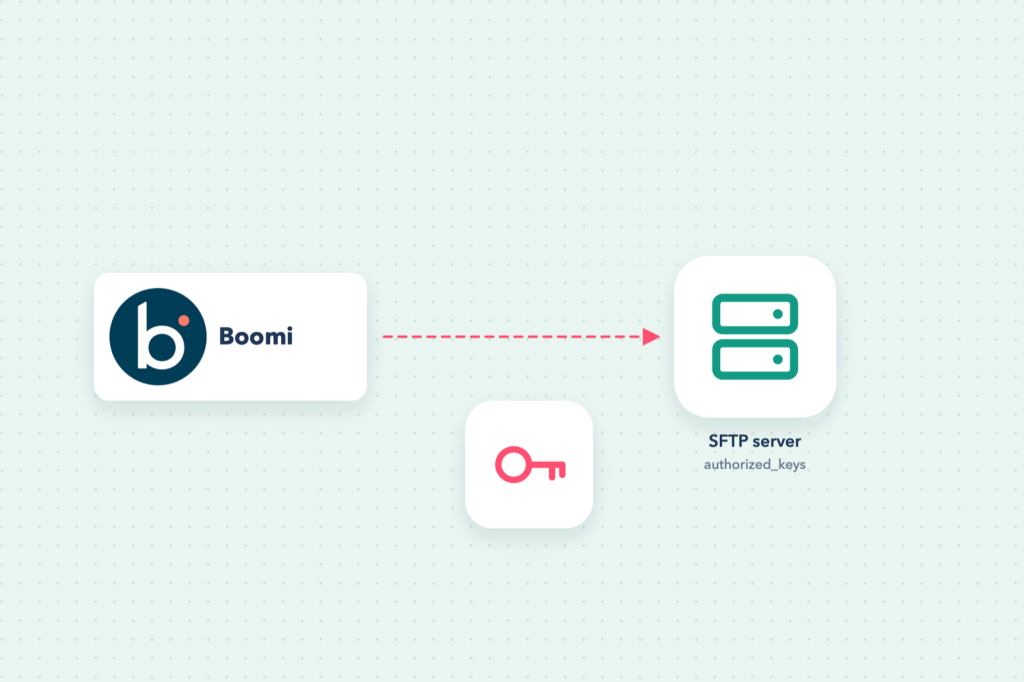
Many partners and security teams require key-based authentication for SFTP instead of passwords. Keys cannot be guessed, are not typed into emails, and can be revoked per client. Boomi’s SFTP connector supports this through public key authentication.
How key-based login works
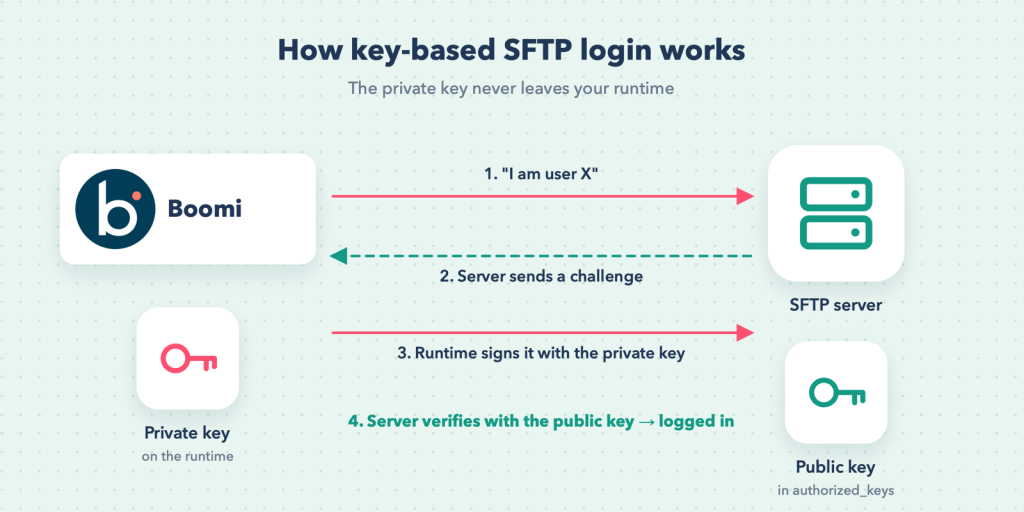
You create a key pair:
- the private key stays with Boomi, on the runtime that connects;
- the public key is sent to the SFTP server owner, who adds it to the user’s
authorized_keys.
When Boomi connects, the server issues a challenge that only the matching private key can sign. No password crosses the wire.
If you still need a key pair, see Generate an SSH key with PuTTYgen or Terminal.
Step 1: send the public key
Send the public key (the .pub file, a single line starting with ssh-rsa or ssh-ed25519) to the server owner, along with the user name it belongs to. Never send the private key; nobody else ever needs it.
Step 2: place the private key where the runtime can read it
The connector reads the private key from a file path on the runtime:
- On a local runtime, copy the private key to a folder the runtime’s service account can read. Boomi recommends keeping keys outside the runtime installation directory, because those folders can be replaced during runtime updates. For example
C:Boomikeyspartner_sftpor/opt/boomi-keys/partner_sftp. - Restrict file permissions so only the runtime’s service account can read it.
- On a Boomi-hosted runtime cloud you cannot copy files to the machines yourself, so check the current SFTP connector documentation, or Boomi support, for how keys are provided there.
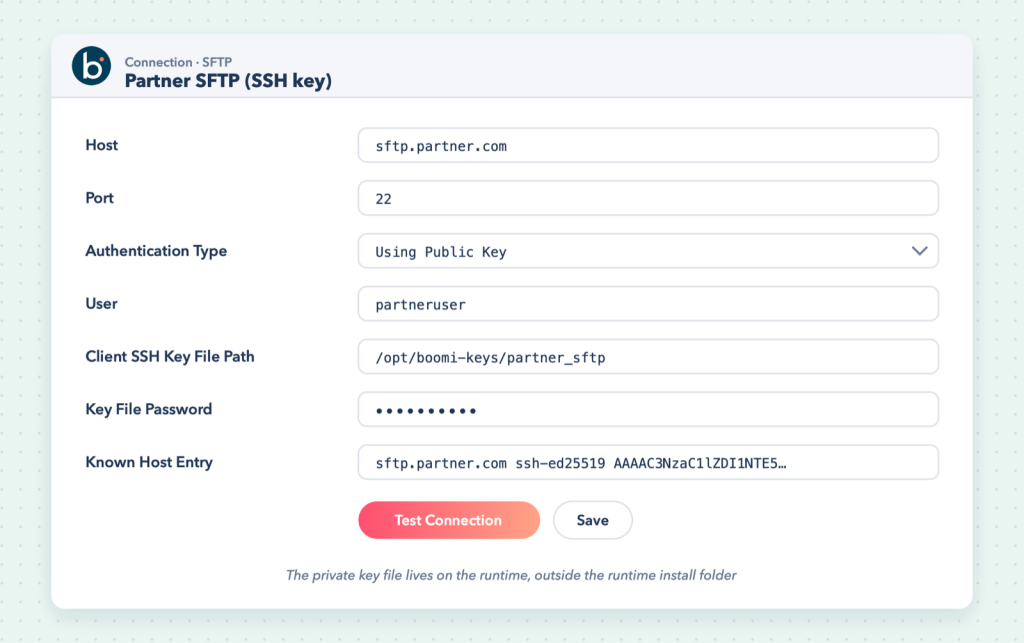
Step 3: the connection
| Field | Value |
|---|---|
| Host / Port | as provided, port usually 22 |
| Authentication type | public key |
| User | the SFTP user the public key was added to |
| Client SSH key file path | the full path to the private key file |
| Key file password | the passphrase, if the key has one (required when it is protected) |
| Known Host Entry | the server’s host key line (see the password guide) |
Key format matters
Keys created with ssh-keygen or exported from PuTTYgen both work, but PuTTY’s own .ppk format is not an OpenSSH key. In PuTTYgen use Conversions → Export OpenSSH key to produce a file the connector can read.
Tip: If the connector reports an invalid private key, convert it to the classic PEM format: ssh-keygen -p -m PEM -f partner_sftp rewrites the key in place (keep a backup first).
Test outside Boomi first
From the runtime machine, prove the key works with the standard client:
sftp -i /opt/boomi-keys/partner_sftp -P 22 partneruser@sftp.partner.comIf this fails, the problem is the key, user or server configuration, not Boomi. Adding -v shows exactly which step fails.
Common mistakes
- Sending the private key to the partner instead of the public one.
- Using a
.ppkfile directly. - The runtime service account cannot read the key file (permissions or wrong path).
- The partner added the public key to the wrong user.
- A passphrase on the key but the password field left empty.