
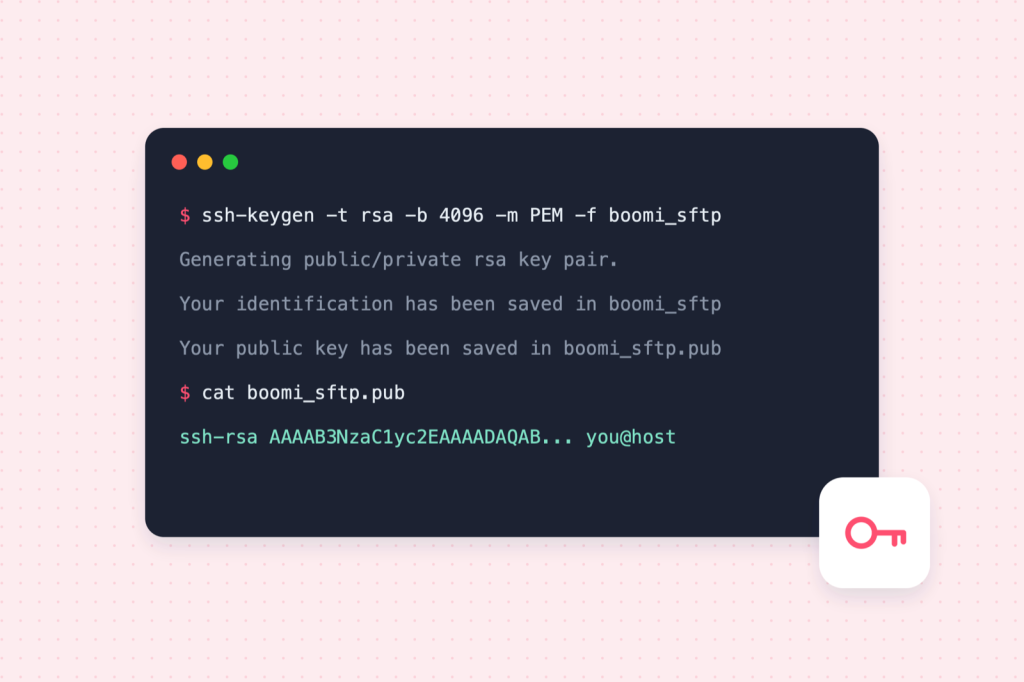
Key-based SFTP needs a key pair: a private key that stays with you and a public key you share with the server owner. Here are both common ways to create one.
Which key type?
- RSA, 4096 bits is accepted almost everywhere and is the safest choice for integrations with older servers.
- Ed25519 is modern, short and fast, but check that the server (and your integration platform) supports it before choosing it.
When in doubt, use RSA 4096.
Option 1: Terminal (macOS, Linux, Windows 10/11)
ssh-keygen is included with macOS, Linux and current versions of Windows (via the OpenSSH client).
ssh-keygen -t rsa -b 4096 -m PEM -C "boomi-sftp-partner" -f ~/.ssh/boomi_sftp_partner-t rsa -b 4096: RSA key, 4096 bits.-m PEM: the classic PEM format, which integration tools read most reliably.-C: a comment so you can tell keys apart later.-f: where to save it. This createsboomi_sftp_partner(private) andboomi_sftp_partner.pub(public).
You are asked for a passphrase. A passphrase encrypts the private key file; if you set one, you will enter it in the integration’s connection settings as well.
Show the public key to copy it:
cat ~/.ssh/boomi_sftp_partner.pubCheck its fingerprint, which is useful for confirming with the server owner:
ssh-keygen -lf ~/.ssh/boomi_sftp_partner.pubOption 2: PuTTYgen (Windows)
PuTTYgen comes with PuTTY.
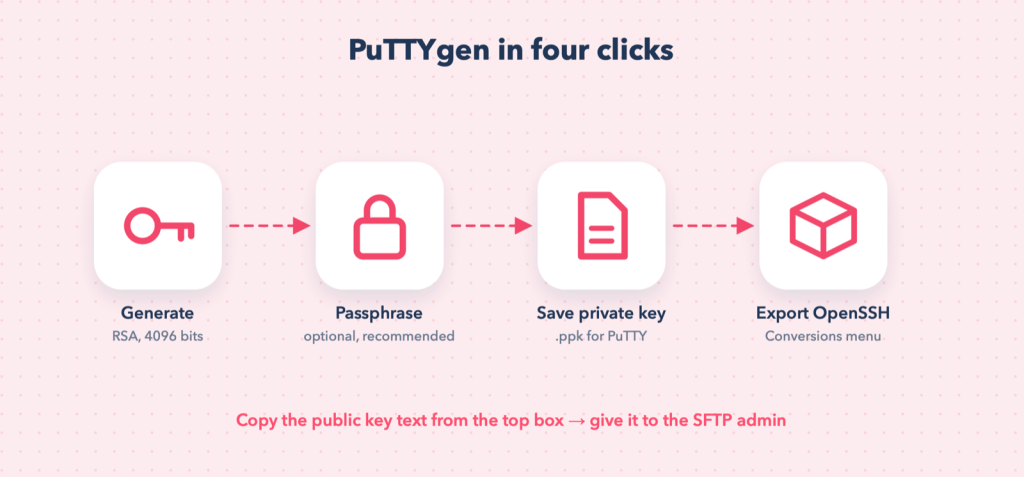
- Open PuTTYgen. Choose RSA and set the number of bits to 4096.
- Click Generate and move the mouse over the blank area until the bar fills; this provides randomness.
- Enter a Key comment and, ideally, a Key passphrase.
- Click Save private key. This saves a
.ppkfile for PuTTY tools. - Choose Conversions → Export OpenSSH key and save it too. This is the file integration platforms such as Boomi need.
- Copy the text in the box at the top (Public key for pasting into OpenSSH authorized_keys file). That single line is the public key you send.
Watch out: A .ppk file is not an OpenSSH private key. If a tool rejects your key, you probably gave it the .ppk instead of the exported OpenSSH file.
Install the public key on the server
If you manage the server yourself, append the public key line to the user’s ~/.ssh/authorized_keys and set strict permissions:
mkdir -p ~/.ssh && chmod 700 ~/.ssh
cat boomi_sftp_partner.pub >> ~/.ssh/authorized_keys
chmod 600 ~/.ssh/authorized_keys
Otherwise, send the .pub line to the server administrator and tell them which user it is for.
Test the login
sftp -i ~/.ssh/boomi_sftp_partner partneruser@sftp.partner.comKeep keys safe
- Never email or commit the private key.
- Use one key pair per integration or partner, so you can revoke one without affecting the others.
- Record where each key is used and when it should be rotated.